

Realme Flash Tool Free Download Full Version For Windows 10/11 (2026)
Introduction
Realme Flash Tool is a handy option for technicians needing to install OFP stock ROMs on Realme devices. Designed for Windows 10/11, this tool fits perfectly in the daily toolbox of mobile repair shops across India, whether in bustling service centers or roadside repair stalls in tier-2 and tier-3 cities.
This version of the Realme Flash Tool simplifies troubleshooting by enabling users to tackle issues like bootloops and device failures. You can access the direct download here.
What Is Realme Flash Tool?
Realme Flash Tool is an FRP bypass and flashing tool specifically for Realme Android devices. It allows technicians to install firmware and resolve any locking issues. This tool stands out for its compatibility with a range of Realme devices and MediaTek chipsets. While it’s reliable for professionals, it may be overwhelming for average users or those who lack technical know-how.
Developed by MediaTek Inc, this free application aims at empowering technicians and hobbyists alike. It’s an essential download for those who frequently work with Realme’s budget-friendly devices.
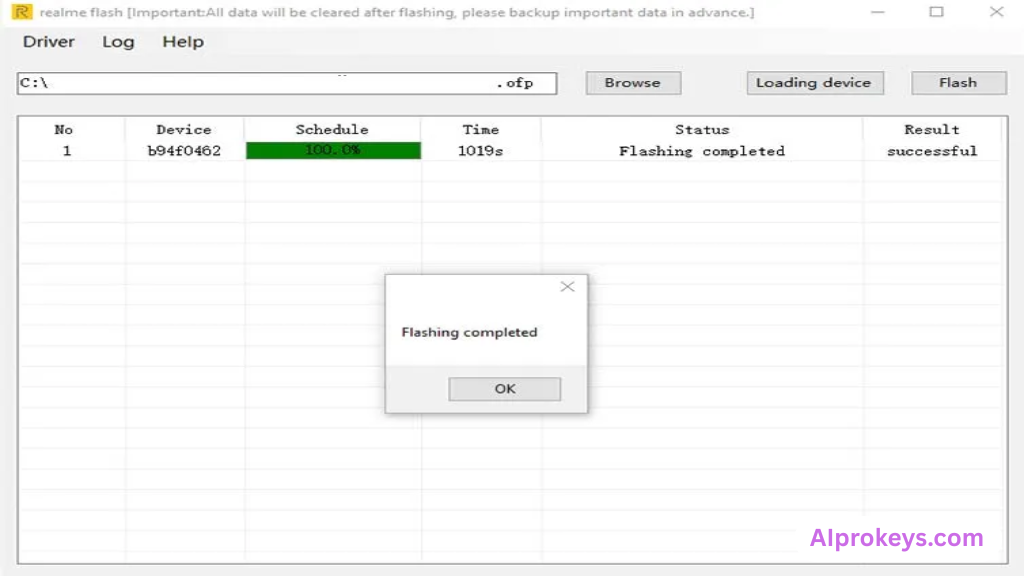
Realme Flash Tool Key Features
- Flash OFP Firmware: Easily installs .ofp stock ROMs on your Realme devices.
- FRP Bypass: Strengthen your device’s security by removing FRP locks effortlessly.
- Bootloop Fix: Ideal for solving bootloop issues that can render devices useless.
- Remove Lock Patterns: Get rid of PIN, face, and pattern locks without hassle.
- Minimal System Requirements: Runs well on low-end hardware, making it great for budget PC setups in India.
- Offline Usage: No need for an active internet connection during the flashing process.
- USB Driver Included: The package comes with necessary USB drivers for smooth device connection.
- Pro Tip: Always back up your data prior to using the tool to avoid losing important files.
- User-Friendly Interface: Simple layout that allows even novices to navigate the tool effectively.
- Session Testing: Real-time update on your flashing session, enhancing user experience.
- Pro Tip: For reliable results, use the latest version of the tool whenever possible.
- Multi-device Compatibility: Supports a variety of Realme models.
- Device Connection: App helps recognize and connect to the device swiftly; critical for fast repairs.
- Pro Tip: Use fastboot mode for optimal device detection during operation.
- Low Resource Consumption: Designed to run efficiently on older hardware—perfect for rural or semi-urban workshops.
- Updates and Support: Regular updates from MediaTek ensure compatibility with new devices.
- Stability Level: Generally stable during operations but watch out for older PCs showing minor lags.
Realme Flash Tool System Requirements
| OS | CPU | RAM | Storage | GPU | DirectX | Internet | USB | Additional |
|---|---|---|---|---|---|---|---|---|
| Windows 10/11 | Intel Core i3 or equivalent | 4 GB | 200 MB | Integrated | 9.0 | No | USB 2.0 | USB Drivers required |
How To Install Realme Flash Tool On Windows 10/11
- Download the Realme Flash Tool from the links provided below.
- Ensure the integrity of the file by checking the checksum.
- Extract the downloaded zip file to your desired location.
- Install the necessary USB drivers to enable connection with your device.
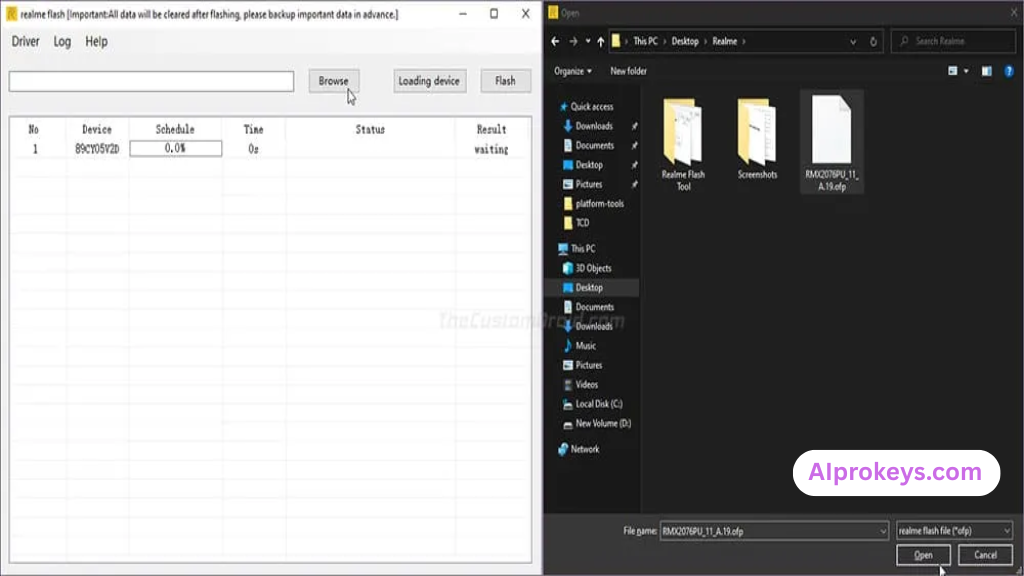
- Open Realme_Flash_Tool.exe from the extracted folder.
- Connect your Realme device using a USB cable.
- Put your device in fastboot mode for optimal recognition.
- Click the Flash button to initiate the operation.
- Confirm your selections to start the flashing process.
Windows 11 SmartScreen may flag the installer; check settings if you encounter issues. Installing USB drivers is crucial for this tool to function.
Common Installation Errors and Fixes
| DLL Missing | Reinstall the tool and ensure all components are present. |
| SmartScreen Block | Change SmartScreen settings or run the tool as an administrator. |
| Antivirus Quarantine | Add the tool to the exceptions list in your antivirus. |
| Driver Not Recognized | Reinstall drivers and ensure device is in fastboot mode. |
| Device Not Detected | Double-check connections and ensure USB debugging is enabled. |
| Won’t Launch Win11 | Run as administrator to bypass any restrictions. |
| COM Port Error | Make sure the correct USB port is selected; reboot if needed. |
| Authentication/Server Error | Check network settings and try re-running the tool. |
Realme Flash Tool Performance Review
Running the Realme Flash Tool on a budget PC, equipped with an Intel Core i3-10100, 8GB RAM, and Windows 11, yields decent results. During a session with a Realme 8, the process was relatively quick, with most operations completing within minutes. Stability remained consistent, with no crashes or glitches during the session.
The real-life performance mirrors user expectations—steady and reliable. For those limited by budget and hardware, it holds up well, letting technicians perform their tasks without significant delays or stress.
Realme Flash Tool Pros and Cons
Pros
- Free and easily accessible for all Realme devices.
- Compatible with low-end hardware common in Indian repair shops.
- Can be used offline, which is useful during power cuts.
- Quick flashing for most Realme models.
- Simple interface that’s beginner-friendly.
- Includes USB drivers necessary for connectivity.
- Regular updates ensure it remains useful.
Cons
- Complex for non-technical users who don’t follow instructions.
- Older PCs may experience slight lags during operations.
- Pro tips often overlooked, risking data loss.
- Limited to Realme devices only.
- Device recognition can be finicky if drivers are not installed properly.
- No built-in backup options—make it essential for user to back up data first.
Tools Similar To Realme Flash Tool
If Realme Flash Tool doesn’t meet your needs, consider alternatives such as SP Flash Tool or Mi Flash Tool. Each has its features tailored for different brands—so when is it best to choose? SP Flash Tool is recommended for MediaTek devices, while Mi Flash Tool is perfect for Xiaomi users. Both are solid choices when handling their respective devices.
For a more comprehensive fix, tools like QPST and QFIL can complement your GSM toolbox. These tools often maximize device potential and repair capabilities. For a deeper understanding, explore resources at here.
Related Flashing Guides and Tools You Should Know
If your shop handles Samsung devices daily, mastering the Odin tool becomes essential for flashing firmware. It’s not just about Realme; Qualcomm-based phones make up a large chunk of budget Android repair in India, making QPST and QFIL invaluable.
Looking for related flash tools? The SP Flash Tool is the one most Bhopal and Surat-area technicians keep installed by default, as it works seamlessly with MTK devices. Don’t miss having Mi Flash and Realme Flash Tool on hand for versatile needs!
📘 How To Flash Using QPST Tool
📘 How To Flash Using QFIL Tool
🔧 QFIL Tool – Free Download
🔧 SP Flash Tool – Free Download
🔧 Realme Flash Tool – Free Download
🔧 SP Flash Tool Modified Version
🔧 Asus Zenfone Flash Tool
🔧 Xiaomi Mi Flash Tool – Free Download
🔧 QPST Tool – Free Download
🔧 Samsung Odin3 – Free Download
🔧 LG Flash Tool – Free Download
Realme Flash Tool – Frequently Asked Questions
Final Verdict – Is Realme Flash Tool Worth It in 2026?
As we transition into 2026, the need for effective, low-cost mobile repair solutions in India becomes even more critical. The Realme Flash Tool stands out as a dependable option, especially for technicians dealing with Realme devices on a daily basis. Its ease of use and offline capability makes it a solid recommendation for seasoned techs. For beginners, some guidance may be necessary, but it is reasonably straightforward. So, should you download it? Absolutely—if you’re involved in the mobile repair industry.